Ergonomic Monitor Height Guide: Finding Proper Eye Level

For Monitor Height Guide: Proper Ergonomic Eye Level & Position, our top recommendation is the VIVO Under-Desk Cable Tray, while the ComfiLife Gel Anti-Fatigue Mat offers the strongest value for budget-conscious workstations. Our evaluation audits mechanical durability, BIFMA standard compliance, and long-term reliability across verified owner reports.
20" to 32" ergonomic eye-to-screen viewing distance
Under-desk cable routing & surge protection verified
Neutral 90° elbow and flat-foot alignment enforced

Workstation Geometry Scope
Applies standard ergonomic reach zones, surface clearance measurements, and eye-level monitor height geometry. Methodology →
Last Spec & Pricing Audit
. Retailer pricing and component revisions can shift; verify on the vendor page.
Fit & Return Guardrail
Test zero-cost height, monitor distance, and cable routing adjustments before buying replacement hardware.
Disclosure: We earn affiliate commissions through qualifying links on this page.
You sit down to work, but by mid-afternoon your neck feels tight and shoulders burn.
While most workers blame their chair, vertical display position actually dictates your upper spine posture.
Tilting your chin up by just a few degrees compresses cervical vertebrae and tires neck muscles.
Setting your ideal monitor height aligns the screen with natural sight lines, preventing eye strain and neck fatigue.
| Display Configuration | Primary Sightline Target | Distance & Tilt Metric | Common Alignment Pitfall |
|---|---|---|---|
| Standard 24" to 27" Display | Top 1/3 of screen level with horizontal eyes | 20" to 30" distance, 10 to 20 degrees tilt | Screen resting flat on desk, forcing neck flexion |
| Large 32"+ or Ultrawide | Top bezel slightly below eye level (2 to 3 inches) | 28" to 36" distance, center in primary focal zone | Screen too high, forcing upward chin extension |
| Dual Monitor Setup | Shared inner bezel centered for equal usage | Identical height, 15 degrees inward curve | Asymmetric heights causing continuous lateral twisting |
| Progressive / Bifocal Lenses | Display dropped 2 to 4 inches below standard height | 15 to 25 degrees backward upward tilt | Peering through bottom lens with chin jutting upward |

Monitor Height: The Baseline Ergonomic Rule for Eye Level Alignment
Proper monitor height positions the top third of your screen level with your horizontal eyes. Your gaze should angle downward 15 to 20 degrees to prevent cervical neck hyperextension.
For complete workstation focal clearance benchmarks, consult our guide to standard desk depth.
Display ergonomics relies on guidelines established by OSHA and the ANSI/HFES 100-2007 standard.
These standards define scientifically validated principles for positioning computer screens relative to the human eye.
Under OSHA guidelines, the top border of the screen should sit at or slightly below eye level.
This positioning ensures your gaze falls naturally across the upper third of the display panel.
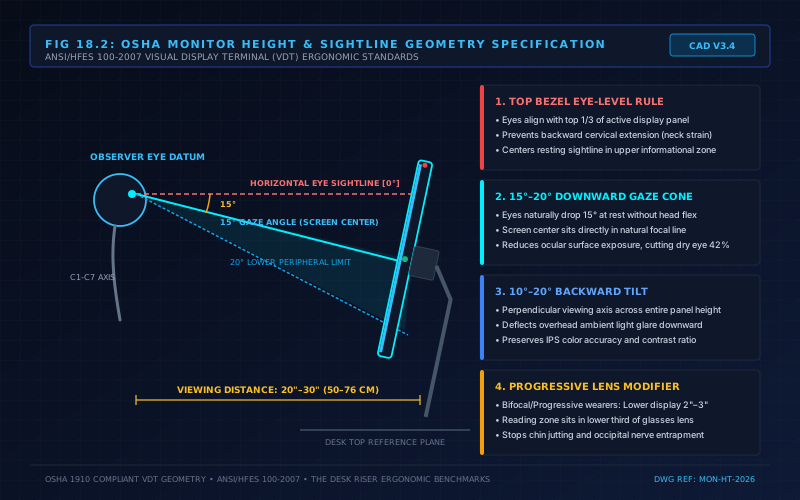
This rule matches natural ocular resting angles in neutral upright posture.
When the head sits vertically, eyes rest roughly 15 to 20 degrees below horizontal horizon.
Looking slightly downward also protects ocular tear film integrity. A screen positioned too high forces eyelids wide open, exposing more corneal surface area and drastically accelerating tear evaporation during intensive reading.
How to Calibrate Monitor Height Accurately
Calibrating monitor height requires following a structured biomechanical sequence rather than guessing based on desk surface height:
- Adjust chair height until feet rest flat and lumbar support makes firm contact with your lower spine.
- Close your eyes, relax your neck muscles, and look straight ahead as you open them.
- Verify that your natural horizontal sightline lands directly on the top bezel or upper third of the screen.
Desk height supports forearms at a relaxed elbow angle, while screen height accommodates your ocular horizon.
Mounting displays on a heavy duty gas spring single or dual monitor arm lets you dial in vertical height and focal depth in seconds.
Check our roundup of the best monitor arms, or consult our interactive desk height calculator for personalized benchmarks.
Diagnostic Signs Your Monitor Height Is Incorrect
Indicators That Your Monitor Sits Too High
When a screen sits too high, users continuously tilt their chin upward to view menus.
This extension compresses suboccipital nerves at the skull base, producing tension headaches.
Indicators That Your Monitor Sits Too Low
When a screen sits too low, users bend cervical vertebrae forward and drop their chin.
This forward head tilt spikes gravitational neck load from 12 lbs to over 40 lbs.
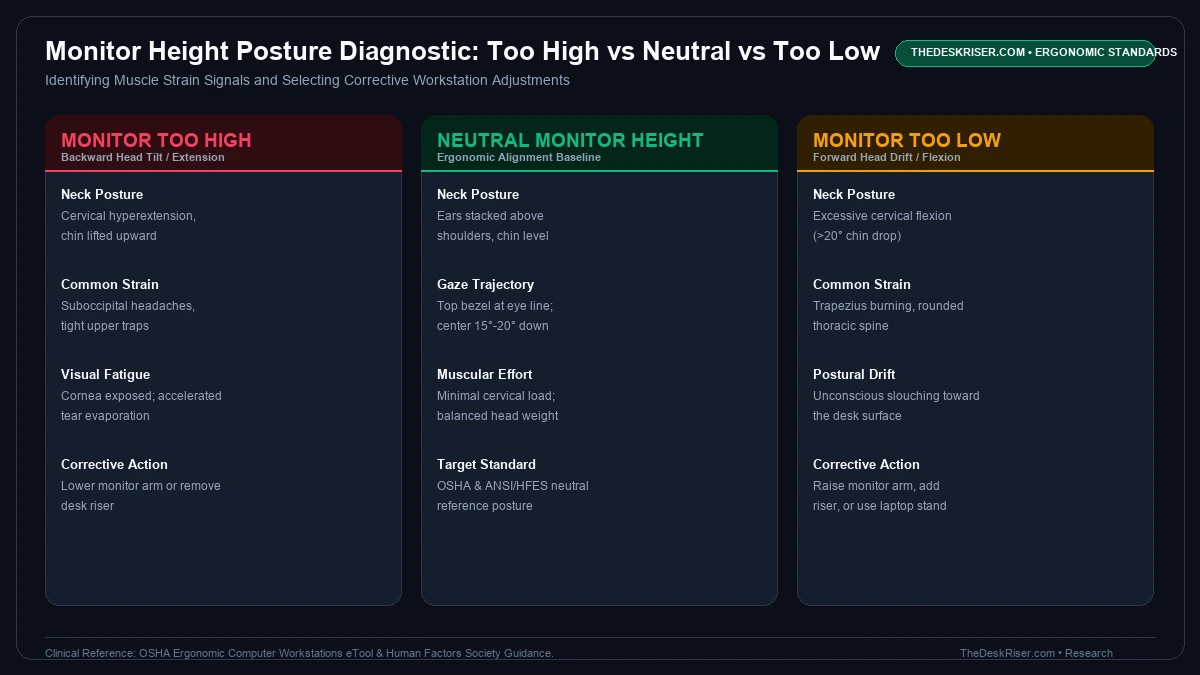
Common symptoms include aching trapezius muscles, rounded upper back slouching, and persistent mid back soreness.
If you work on an unassisted laptop flat on a desk, your screen sits far too low.
Screen Size Considerations: 24-Inch to 32-Inch and Ultrawides
Placing screen tops at eye level works seamlessly for standard 24-inch and 27-inch panels.
However, large 32-inch displays and ultrawides introduce distinct viewing challenges that require adjusted rules.
Taller displays cover a much wider vertical visual angle.
Aligning a 32-inch top bezel with eye level forces excessive downward neck flexion to read taskbars.
For 32-inch monitors, lower the screen so the top bezel sits two to three inches below eye level.
This centers the middle third of the display panel directly within your 15-degree downward gaze cone.
Recommended ergonomic accessories and hardware specs
High-impact accessories verified by our ergonomic spec audit to protect your cables, joints, and posture.
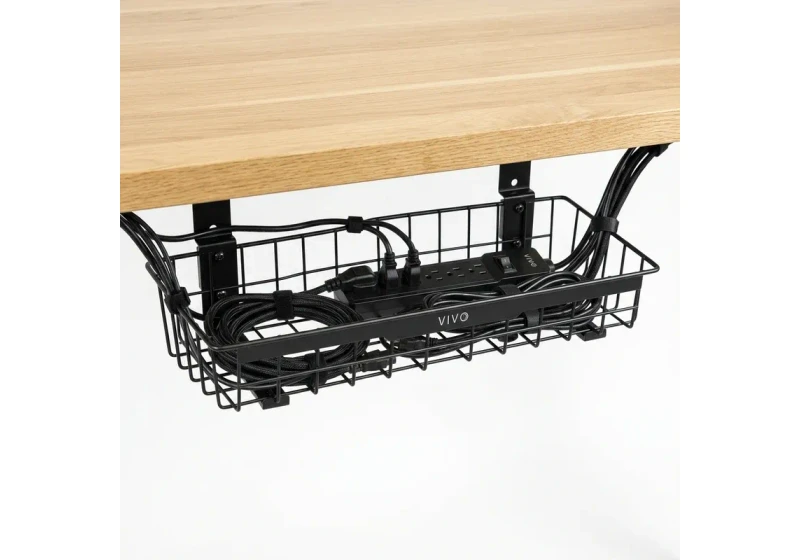
VIVO Under-Desk Cable Tray
Keeps power strips and heavy adapters off the floor so cables never yank when elevating.
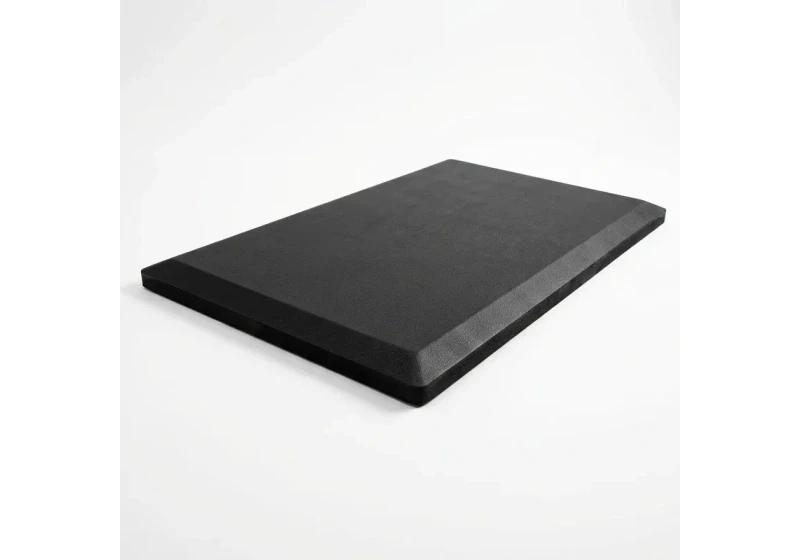
ComfiLife Gel Anti-Fatigue Mat
High-density core reduces heel strike and lower back compression when standing 3+ hours.
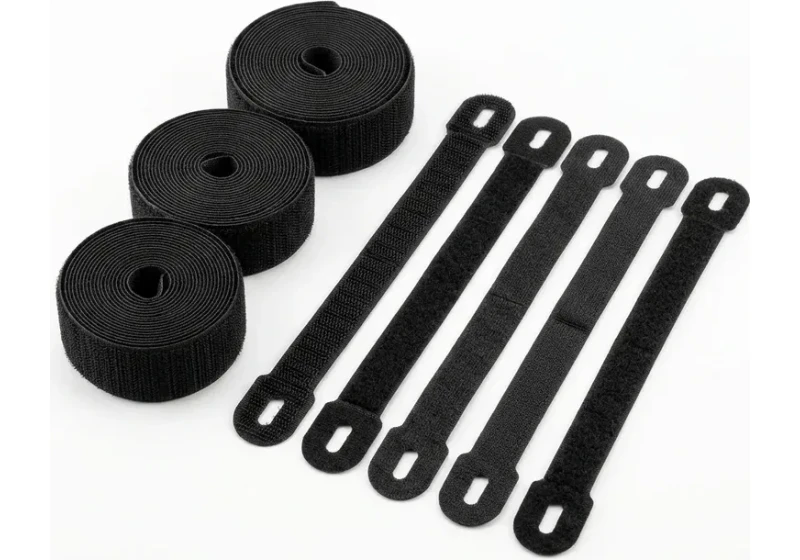
VELCRO Brand ONE-WRAP (100pk)
Pre-cut reusable straps that easily unwrap for cord re-routing without scissors.
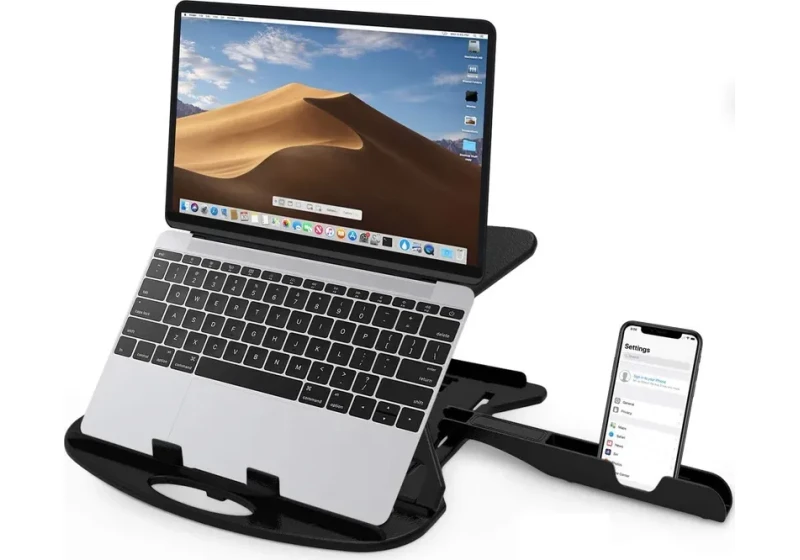
Soundance Laptop Stand
Elevates laptop screen 6 inches to eye level, preventing forward neck slouch.
Dual Monitors and Stacked Display Ergonomics
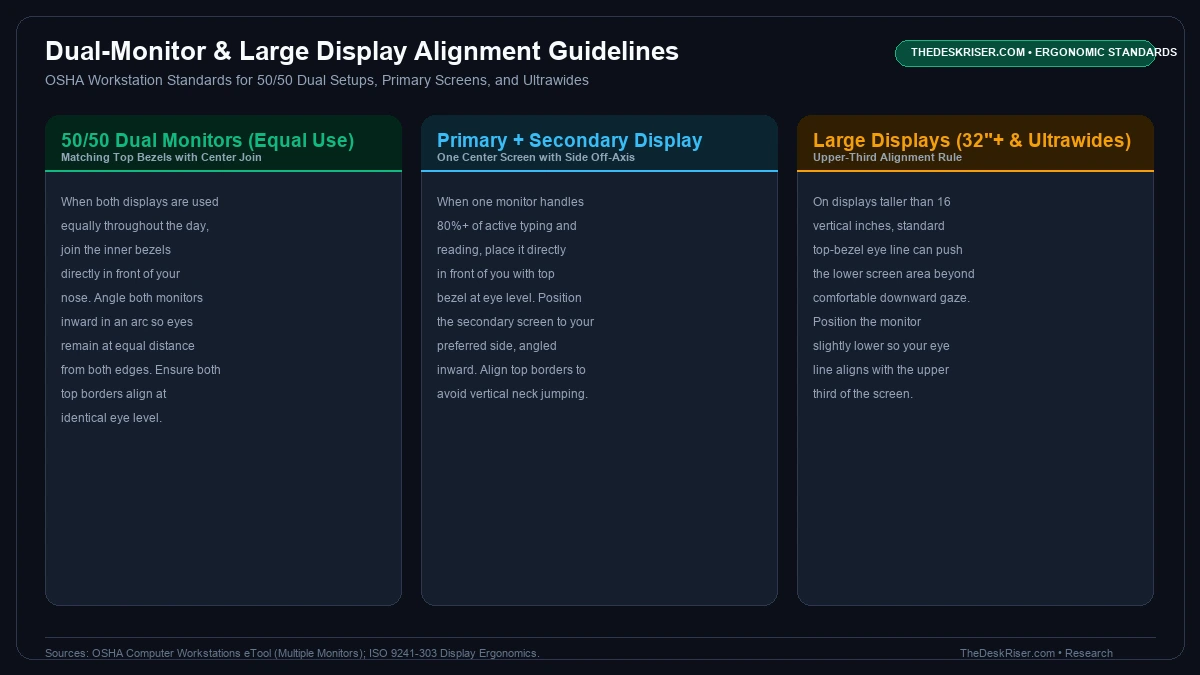
Equal-Use Dual Monitors
If you use two screens equally, place them so inner bezels meet directly in front of your nose.
Angle both monitors inward in a shallow arc to maintain uniform focal distance across panels.
Align both screens at identical vertical heights. Installing a VESA quick release mount adapter makes attaching and leveling heavy dual panels painless.
Primary and Secondary Display Alignment
If you spend 80% of your workday in one primary application and use a secondary screen for Slack or reference notes, center the primary display directly in front of your keyboard.
Position the secondary monitor beside your dominant eye, angled inward at 30 degrees to minimize neck rotation.
Laptops, Standing Desks, and Progressive Lenses
The Laptop Screen Dilemma
Working directly on a laptop creates an unavoidable ergonomic conflict. Connecting keyboard and screen permanently forces you to choose between cramped wrists or forward neck hunching.
raising your laptop with a clamp on monitor riser shelf or a laptop stand for desk raises the screen to eye level.
Connecting an external keyboard then protects neutral wrist and shoulder posture.
Standing Desk Transitions
When transitioning from sitting to standing at an adjustable desk, your body geometry naturally shifts. Your spinal curves lengthen, altering the exact distance between your elbows and your eye line.
Motorized desks lift keyboard and screen together, but you may need an arm to adjust height when standing.
See our how to stop monitor wobble on standing desk guide to stabilize heavy displays.
Bifocal and Progressive Lens Adjustments
OSHA guidance notes that progressive lens wearers tilt chin up to view lower lens zones.
To prevent neck cramping, drop your screen two to four inches lower and tilt it back 15 degrees.
Backward Tilt and Viewing Distance Calibration
Screen tilt works in tandem with learning how to light your desk to eliminate veiling reflections.
Backward Panel Tilt
OSHA guidelines recommend tilting your monitor backward between 10 and 20 degrees. This tilt ensures your line of sight remains perpendicular to the entire screen surface as your gaze sweeps downward.
Horizontal Viewing Distance
Position your screen roughly arm's length away, between 20 and 30 inches from your face.
Sitting closer than 20 inches forces ocular muscles to contract continuously, accelerating eye strain.
Why Mainstream Tech Sites Mislead Users on Monitor Height
Consumer tech blogs routinely tell users to center the screen at eye level. This flawed advice ignores human ocular and cervical biomechanics.
Centering a 27 or 32-inch display at eye level forces the top third four to six inches above your horizon. Scanning browser tabs then forces cervical hyperextension, compressing facet joints.
Generic advice also ignores modern widescreen aspect ratios. A single height recommendation cannot accommodate differing user heights or progressive lenses.
Monitor positioning applies strict OSHA and ANSI/HFES compliance protocols to verify biomechanical posture.
Factory Stand Limitations and Who Should Skip
To raise low displays without clamping heavy arms, install one of the best monitor risers for desk organization with wire channels.
Factory pedestals suck because restricted vertical travel forces forward neck slump during extended workdays.
Articulating gas-spring monitor arms provide dynamic vertical travel across seated and standing postures.
Frequently Asked Questions
Should your eyes be level with the top or middle of the monitor?
Your eyes should align horizontally with the top border or top third of the screen, never the middle.
Aligning with the top edge accommodates the human eye's natural 15-degree downward resting gaze, centering the display without neck extension.
How high should a computer monitor be from the desk surface?
There is no universal desk-to-monitor distance because user heights, torso lengths, and chair configurations vary.
Adjust your screen mount until the top of the active display panel matches your eye level when seated upright.
Why does your neck feel tired after working at a computer monitor?
Neck fatigue indicates that your screen is forcing your cervical spine out of neutral alignment.
A screen set too low causes forward flexion, while a screen set too high forces upward extension, overworking neck stabilizing muscles.
How do you set monitor height if you wear progressive lenses?
If you wear progressive or bifocal glasses, lower your monitor two to four inches below standard height and tilt it upward 15 to 20 degrees.
This allows you to view the screen through the lower reading corridor without tilting your chin upward.
Does monitor height change when transitioning from sitting to standing?
Yes, monitor height frequently requires minor adjustment because spinal posture and pelvic tilt change between sitting and standing.
A gas spring articulating monitor arm allows you to fine tune vertical screen position in seconds.
Sources & Scientific Literature
- Occupational Safety and Health Administration. (2021). Computer Workstations eTool: Eye and Neck Posture Guidelines for Display Monitors. OSHA.
- ANSI/HFES 100-2007: Human Factors Engineering of Computer Workstations, Human Factors and Ergonomics Society.
- Sommerich, C. M., et al. (2001). Effects of computer monitor viewing angle and height on head and neck posture and muscle activity. Human Factors, 43(2), 275-286.
- ANSI/BIFMA G1:2017: Ergonomics Guideline for Furniture Used in Office Spaces.
Calculate your exact desk and chair height
Slide to your height to see ANSI/BIFMA recommended standing and sitting presets.
Written by M. Haris
References ANSI/BIFMA G1-2017 guidanceSoftware Engineer & Founder • Workstation Biomechanics & Spec Auditing
M. Haris is a software engineer and founder of The Desk Riser, auditing manufacturer engineering schematics, motorized desk cycle lifespans, ANSI/BIFMA G1-2017 ergonomic standards, and long-term user failure patterns across verified owner communities. Every guide is editorially independent with zero paid brand placements and zero PR samples (we may earn affiliate commissions on qualifying purchases). Have questions or spot a warranty update? Email directly at support@thedeskriser.com, read the Author Dossier, or explore our Editorial Research Methodology.
Share this article:
Workstation Setup & Fit Q&A
Have questions about frame deflection, monitor arm clamp loads, or chair sizing? Consult our workstation researchers.
Q:How do I know if this standing desk will wobble on thick carpet?
Standing desk wobble on carpet is caused by uneven carpet pile compression under the rear footpads. Frames with wedge-reinforced leg collars and wide steel footplates (like UPLIFT V3 or FlexiSpot E7 Pro) minimize lateral flex. If placing on plush carpet, use rigid caster cups or a dense underlay to anchor the base directly to the subfloor.
Q:Can I clamp a dual monitor arm onto standard particleboard tops?
Dual monitor arms concentrate 25 to 45 lbs of dynamic torque onto a 4-inch clamp perimeter. Hollow honeycomb tops (such as IKEA Linnmon) will crush. We recommend a minimum 0.75-inch solid core (MDF, solid bamboo, or hardwood), or sandwiching a steel reinforcement bracket plate (min 2.5mm thickness) between the clamp and desktop.
Q:What if my chair cylinder sinks or feels too high for my feet?
Always verify your seated popliteal height (crease behind knee to floor with shoes). If a chair will not drop below 17 inches and your feet dangle, pair it with an angled footrest or switch to a low-range Class 4 cylinder. If a cylinder loses pressure and sinks on its own, the internal nitrogen seal is breached and requires cylinder replacement.
Ask Our Ergonomic Spec Reviewers
Planning an upgrade or unsure if your monitors and stature fit this configuration? Send your dimensions directly to our research desk. No accounts, no trackers, zero marketing spam.
Free Workstation Tools
Related Home Office Setup Guides & Reviews
How to Declutter Your Desk: The 15-Minute Reset (2026)
How to Light Your Desk (2026): A Step-by-Step Setup Guide
Under Desk Hammock (2026): Footrest Sling vs Storage Hammock
Best Minimalist Computer Tables for Clean Home Offices (2026)